
Guides
Cracked or black laptop screen: is repair worth it?
Cracked, flickering or black laptop screen? Test external display, Windows 11, display cable, hinges, panel type and repair value.
- 8 sections
- 6 min read
- Safe checks first
- Clear stop points
In this guide
Before you begin
What this guide helps you do
A cracked laptop screen is often repairable, but the right decision is not simply ordering a panel with the same size. First you should separate a damaged panel from a display cable, backlight, hinge, graphics, Windows or motherboard problem.
If the laptop works on an external display, the repair is more likely to be in the display assembly. It also gives you a chance to back up important files before repair. If an external display also shows nothing, diagnose the PC before spending money on a screen.
Stop first if there is glass, battery, liquid or important data risk
Do not press the screen to see whether the image comes back. Broken glass can become sharper, liquid crystal damage can spread inside the panel, and a bent lid can damage the display cable further. If hinges or corners are bent, open and close the lid as little as possible.
Also stop if there is liquid damage, burnt smell, swollen battery, heat while charging, important files without backup, or a BitLocker recovery key you cannot find. In those cases it is safer to bring the laptop to EasyPC for a diagnosis before trying more.
Check whether the PC actually starts
Connect an external monitor or TV directly to the PC with HDMI, DisplayPort or USB-C, preferably without a dock. Select the correct input on the monitor. Wait a little after startup, then press Windows + P. Press P again and Enter to cycle between PC screen only, Duplicate, Extend and Second screen only.
If the screen is still black, press Windows + Ctrl + Shift + B to ask Windows to restart the graphics driver. If you hear a sound, see a flicker or get image on the external display, the PC is probably running. If you only see a cursor on a black background, try Ctrl + Alt + Del or Ctrl + Shift + Esc and restart Windows Explorer from Task Manager.
The result decides the next step: a stable external image points toward the internal panel, display cable, backlight or hinge area. No image on an external display can mean Windows driver, RAM, drive, graphics, power or motherboard failure. Do not order a new laptop screen yet.
If an external display works, use that session to protect data before doing more. Copy important files, check BitLocker under Settings > Privacy & security > Device encryption or Control Panel > BitLocker, and note the model or service tag. Screen repair is simpler when files, key and exact model are understood first.
When screen replacement is usually worth it
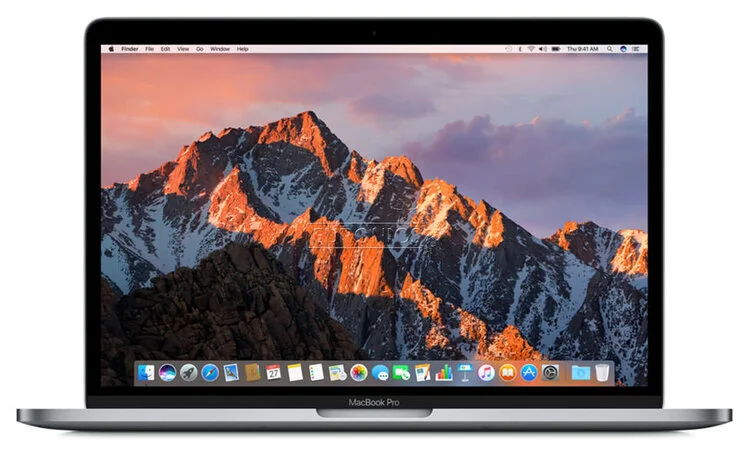
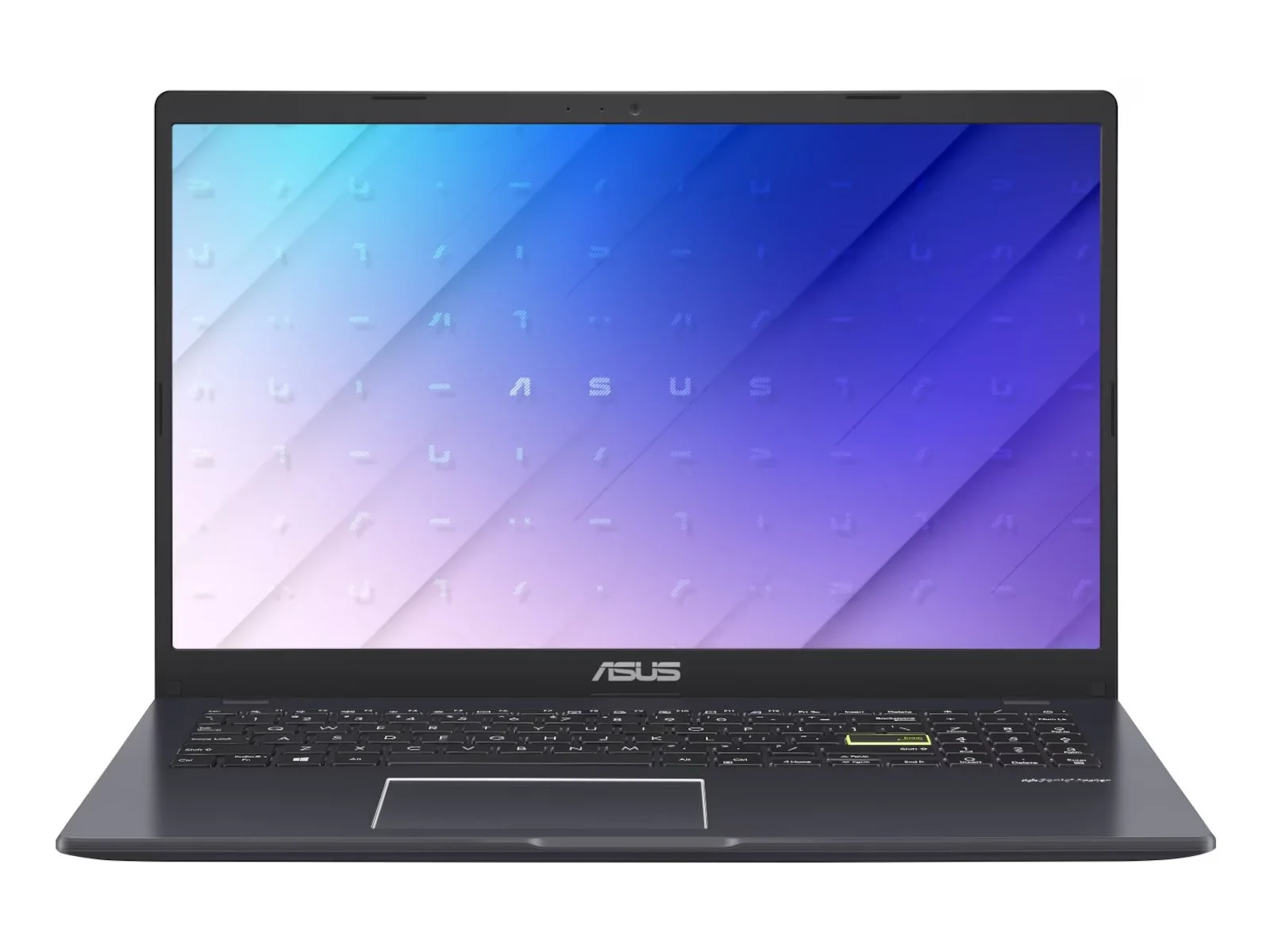
Repair is usually worth it when the PC is otherwise fast enough, the battery is acceptable, the hinges are intact, the chassis is not twisted, and the correct screen panel is available at a sensible price. Many normal Windows laptops with Full HD panels are good candidates.
Be more cautious if the laptop is also slow, has poor battery life, broken hinges, liquid damage, unstable charging or other faults. The whole PC should be assessed first. A diagnosis can prevent you from buying a screen for a machine that actually has a more expensive fault.
Common price levels from earlier screen repairs
Earlier EasyPC screen repair alternatives show that price is mostly driven by panel type, exact model and whether the damage also involves the display cable, hinges or back cover. The table below shows typical levels from earlier repair alternatives, not a guarantee for every model.
| Screen repair type | Typical price | When it applies |
|---|---|---|
| Standard Windows laptop, 14-15.6" FHD panel | about NOK 2,700-3,500 | Common Acer, Asus, Dell, HP and Lenovo panels without touch. Many earlier alternatives were around NOK 2,800-3,000. |
| Gaming, OLED or high-resolution Windows panel | about NOK 3,300-5,500 | 144/165 Hz, QHD/2K, OLED, 16-17 inch panels or displays with higher brightness and color requirements. |
| Touch, 2-in-1 or Surface-like display | about NOK 3,800-7,200 | More often a complete display assembly with glass, touch and more disassembly than a normal panel. |
| MacBook Air | about NOK 6,000-7,500 | M1/M2/M3 Air alternatives were often in this range. Older Air models can be lower if a used part fits and the machine is otherwise good. |
| MacBook Pro 13" | about NOK 5,500-6,500 | Many A1708/A2338 alternatives are around NOK 6,000 when the complete display assembly must be replaced. |
| MacBook Pro 14"/16" Apple Silicon | about NOK 9,000-13,500 | Newer complete display assemblies. The most common earlier alternative level was around NOK 11,500. |
| Display cable or display connector | about NOK 900-2,400 | When the panel is healthy, but the cable or connector must be adjusted or replaced. |
| Screen plus hinge or back cover | about NOK 3,000-5,200+ | Drop damage where the lid, hinge, antennas or back cover also need repair together with the screen. |
- Screen repair type
- Standard Windows laptop, 14-15.6" FHD panel
- Typical price
- about NOK 2,700-3,500
- When it applies
- Common Acer, Asus, Dell, HP and Lenovo panels without touch. Many earlier alternatives were around NOK 2,800-3,000.
- Screen repair type
- Gaming, OLED or high-resolution Windows panel
- Typical price
- about NOK 3,300-5,500
- When it applies
- 144/165 Hz, QHD/2K, OLED, 16-17 inch panels or displays with higher brightness and color requirements.
- Screen repair type
- Touch, 2-in-1 or Surface-like display
- Typical price
- about NOK 3,800-7,200
- When it applies
- More often a complete display assembly with glass, touch and more disassembly than a normal panel.
- Screen repair type
- MacBook Air
- Typical price
- about NOK 6,000-7,500
- When it applies
- M1/M2/M3 Air alternatives were often in this range. Older Air models can be lower if a used part fits and the machine is otherwise good.
- Screen repair type
- MacBook Pro 13"
- Typical price
- about NOK 5,500-6,500
- When it applies
- Many A1708/A2338 alternatives are around NOK 6,000 when the complete display assembly must be replaced.
- Screen repair type
- MacBook Pro 14"/16" Apple Silicon
- Typical price
- about NOK 9,000-13,500
- When it applies
- Newer complete display assemblies. The most common earlier alternative level was around NOK 11,500.
- Screen repair type
- Display cable or display connector
- Typical price
- about NOK 900-2,400
- When it applies
- When the panel is healthy, but the cable or connector must be adjusted or replaced.
- Screen repair type
- Screen plus hinge or back cover
- Typical price
- about NOK 3,000-5,200+
- When it applies
- Drop damage where the lid, hinge, antennas or back cover also need repair together with the screen.
As a rule of thumb, a normal Windows panel is often worth considering if the PC is otherwise good. MacBook, touch, OLED and gaming panels need a more careful calculation because the part quickly becomes a large share of the machine value.
Match the exact panel, not only the size
Two 15.6-inch screens can look the same and still use a different connector, connector position, resolution, mounting brackets, brightness, color profile, touch layer or refresh rate. Use the model number, serial/service tag and preferably the panel number from the back of the old screen before ordering.
If the screen still shows enough image, or you get image through an external display, check Windows 11 under Settings > System > Display. Use Identify to confirm which display you are changing, and check that Display resolution is set to the recommended value. This helps with resolution, but it does not prove which physical panel fits.
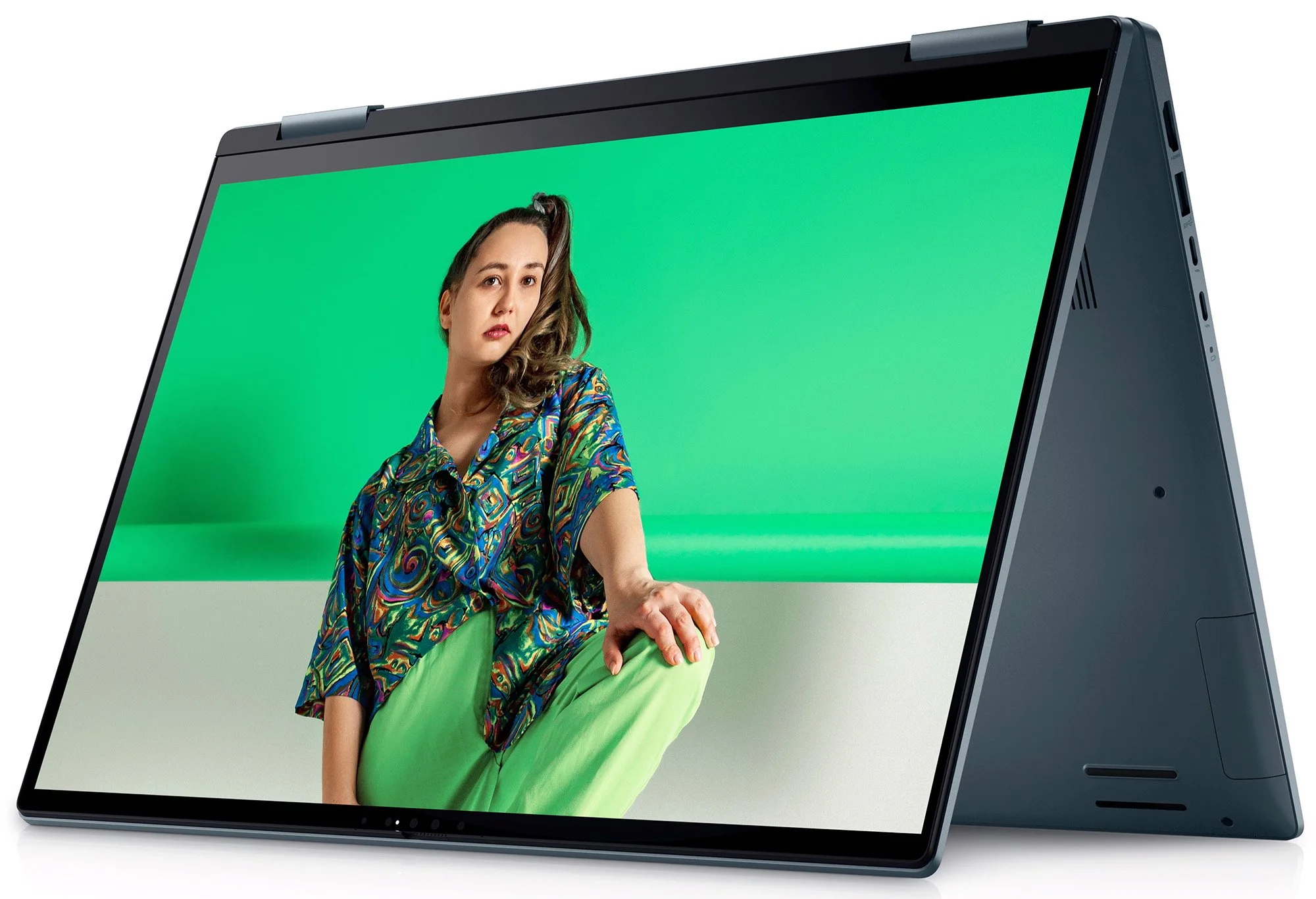
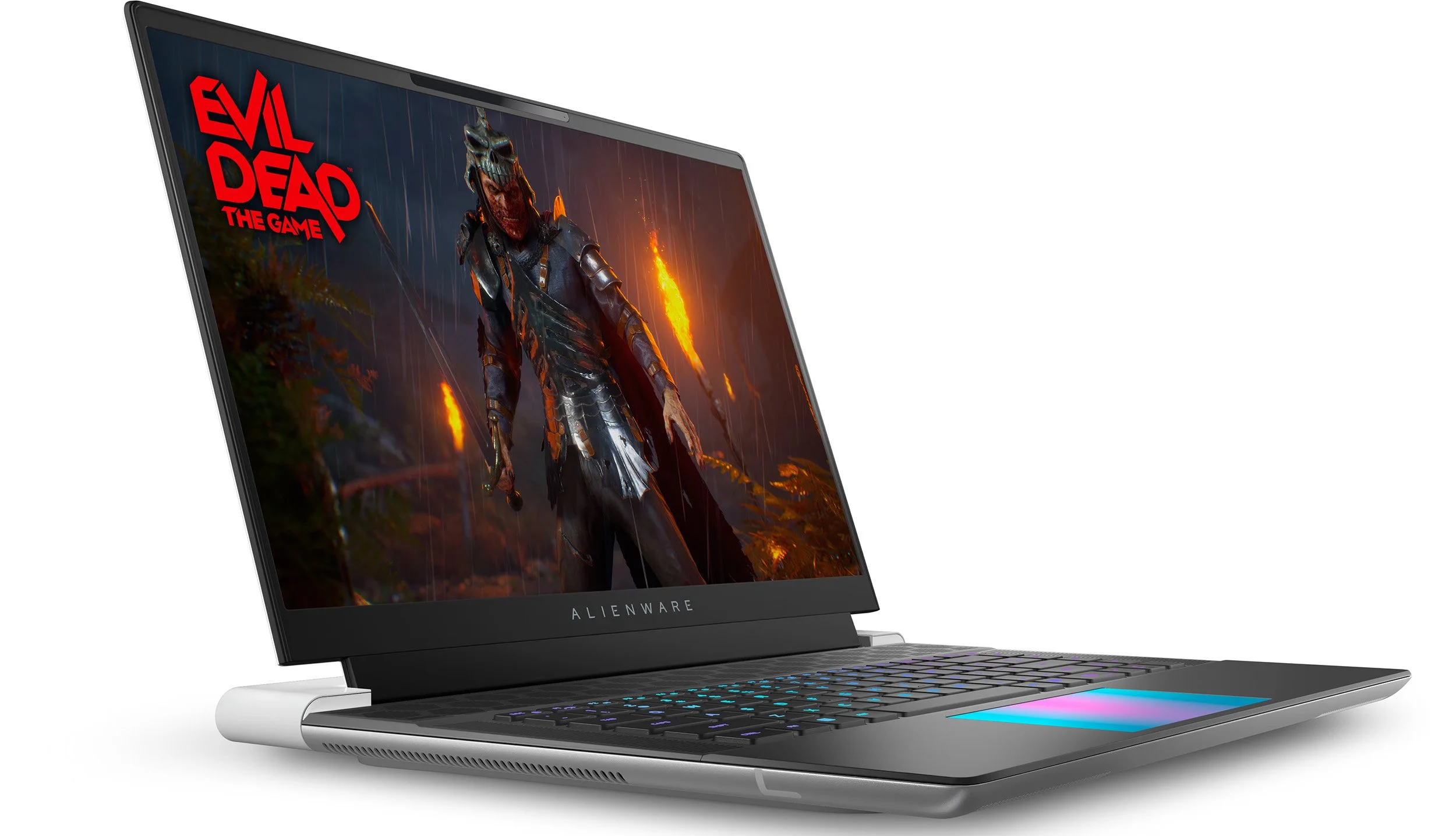
Touch, 2-in-1 and some thin models often use a complete display assembly with glass, touch, camera, cables and frame. Gaming laptops can use 120 Hz, 144 Hz, 165 Hz or higher panels. If you order a cheap standard panel for that kind of machine, you can end up with the wrong connector, wrong brightness or reduced functionality.
During replacement, the real risk is often cable, adhesive and battery
A screen replacement often starts by removing the bottom cover and disconnecting the battery. The bezel is then released, the display cable disconnected and the panel removed. Some panels are screwed in, while others use adhesive or pull tabs. The wrong screw, too much force or a connected battery can turn a simple job into an expensive one.
If the glass is glued, the display cable runs tightly through the hinge, or the battery is swollen, stop. MacBooks, many 2-in-1 machines and thin premium laptops often need to be assessed as a complete display assembly rather than only a panel.
Signs that it is not only the screen
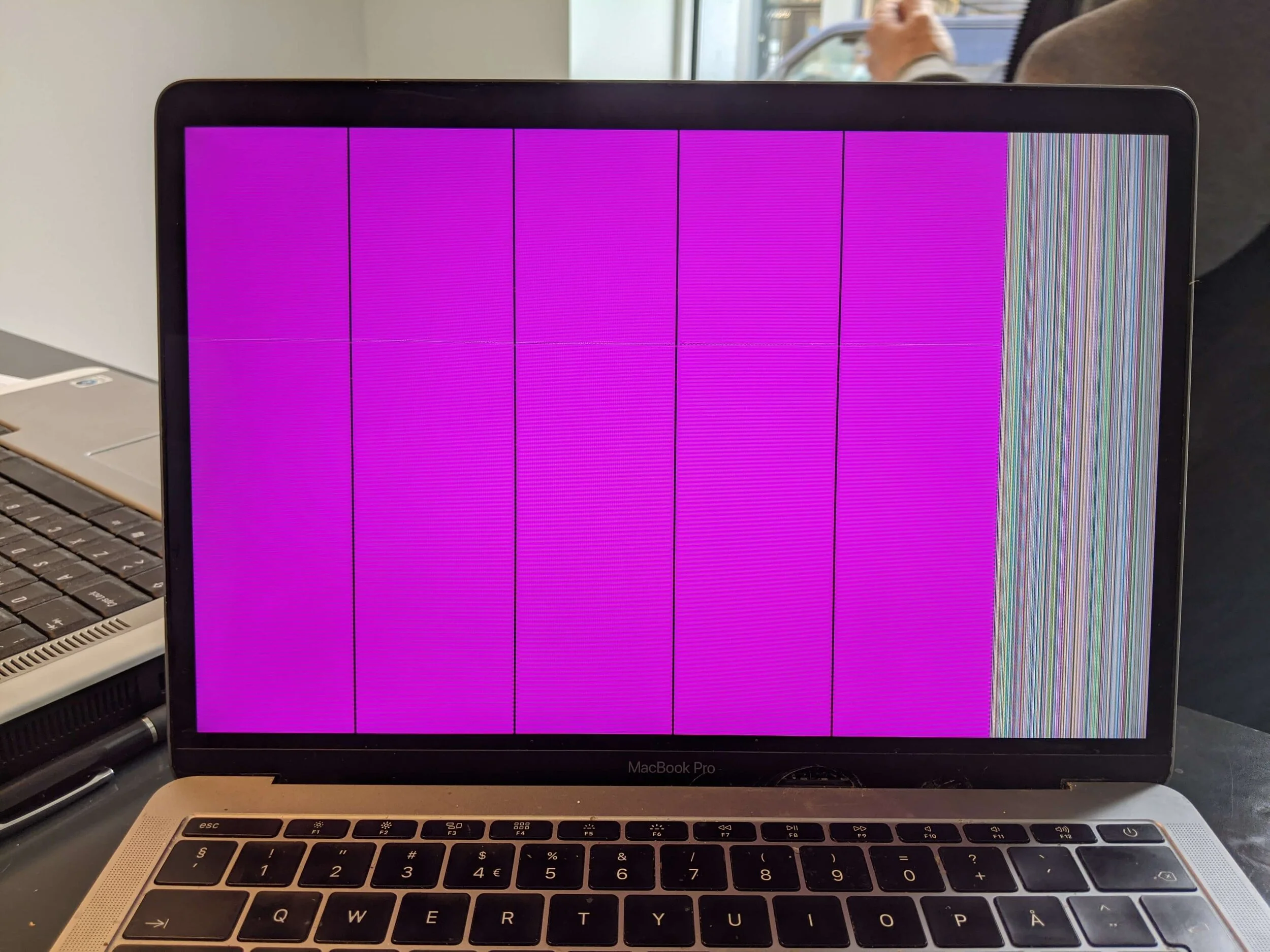
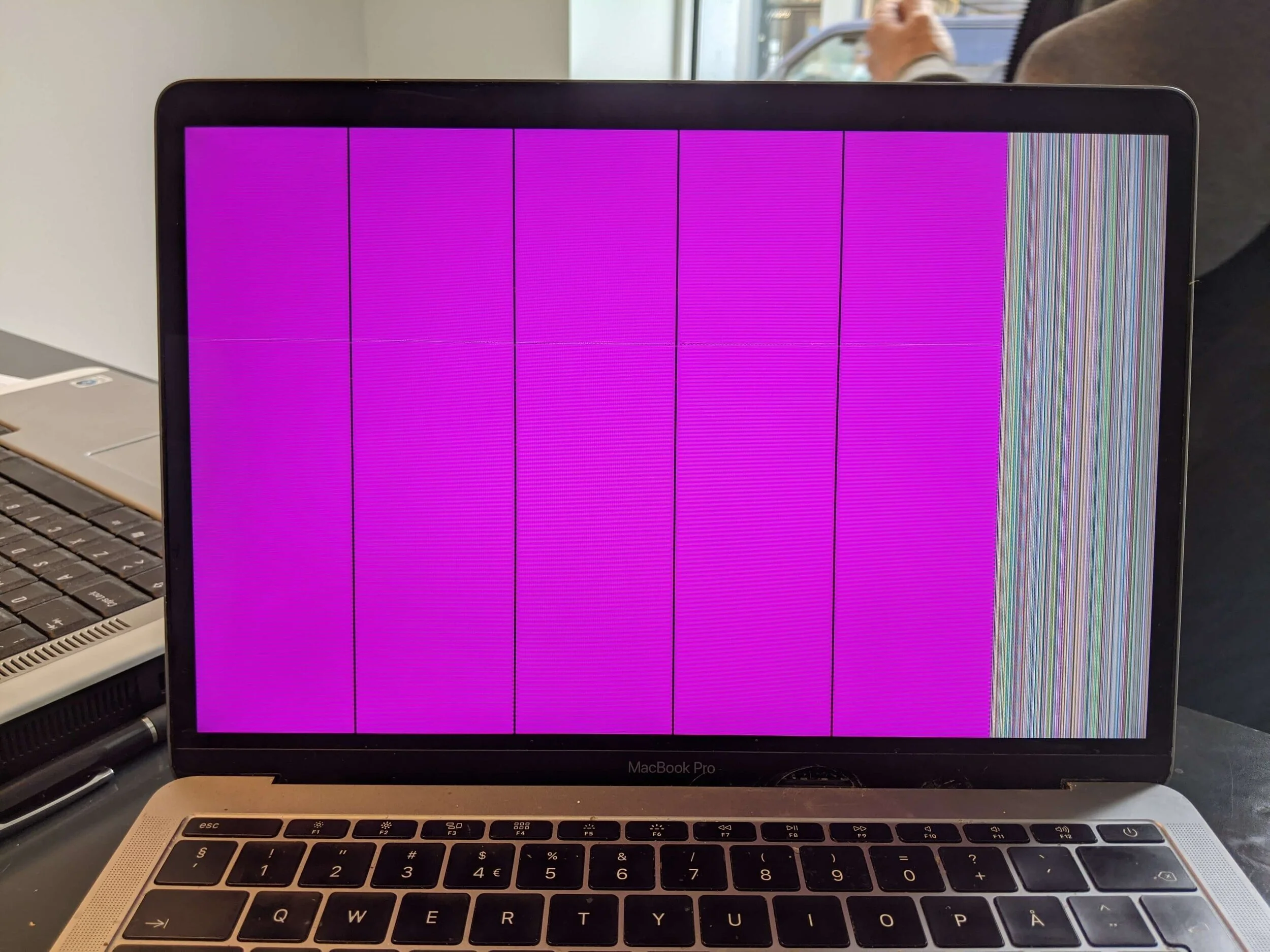
Color blocks, vertical lines, flicker or a black image can be caused by the panel, but also by the display cable, backlight, graphics, power or motherboard. Image that changes when you move the lid often points to cable, hinge or panel connector. Keyboard lights turning off, fan stopping, or no image on an external display points more toward another fault.
If the issue started after Windows Update and you sometimes get image, or image works on an external display, try Safe Mode before doing anything that affects files. Hold the power button for about 10 seconds to shut down, repeat 2-3 times until Windows Recovery appears, then go to Troubleshoot > Advanced options > Startup Settings > Restart > F5. From there, update or roll back the graphics driver. Do not reset Windows before backup and BitLocker recovery key are handled.
When EasyPC should assess the machine
Bring the machine to EasyPC for a diagnosis if the hinges are bent, the screen is touch/2-in-1/MacBook/gaming, the external display shows no image, the machine has liquid or battery issues, or you have important files without backup. We can confirm whether screen replacement is actually worth it before parts are ordered.