
Guides
Noisy laptop: how to find the cause
Noisy laptop? Check Windows 11, fan noise, power mode, updates, dust, battery, abnormal sounds and when to stop.
- 7 sections
- 6 min read
- Safe checks first
- Clear stop points
In this guide
Before you begin
What this guide helps you do
A noisy laptop does not always mean a bad fan. First separate normal fan noise under load from abnormal mechanical noise, coil whine, hard drive clicking, speaker distortion and real heat problems. The right fix is different for each one.
Stop early if the sound appeared after impact or liquid, the machine smells burnt, shuts down, becomes very hot around the battery, has a swollen battery, or the fan scrapes or ticks like something is touching it. Disconnect the charger and bring the machine to EasyPC for a diagnosis instead.
Check whether the fan follows workload
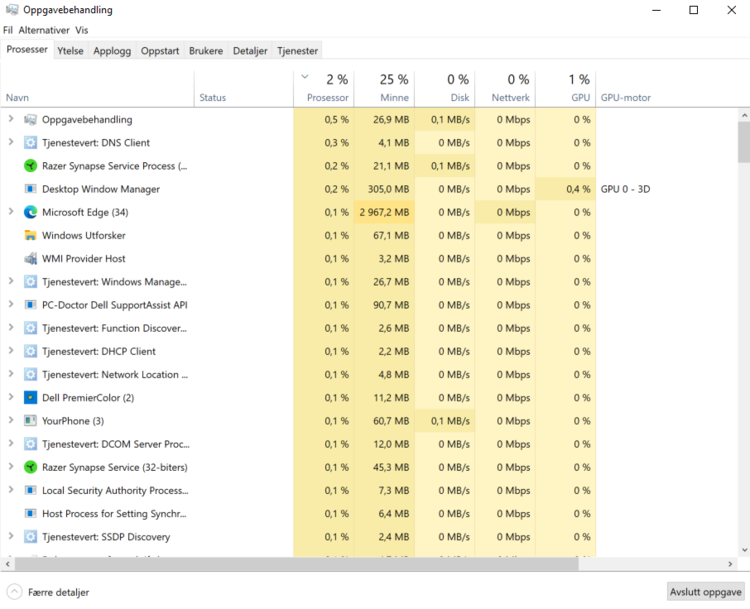
Press Ctrl + Shift + Esc to open Task Manager. Select Processes and sort by CPU, Memory, Disk and GPU. Let the machine sit idle for one to two minutes. If one app stays high, close it and see whether the fan settles down.
Common reasons for loud fan noise include many browser tabs, video meetings, games, antivirus scans, Windows Update, OneDrive sync, photo or video apps and stuck programs. If the load drops after a restart, the problem was probably software or background work.
If CPU, Disk or GPU stays high right after every startup, check Settings > Apps > Startup and disable startup apps you recognize and do not need immediately. Do not disable security software, touchpad, audio, graphics or manufacturer tools you do not understand. Note what you change so you can put it back.
If you still suspect a software conflict, clean boot can separate Windows load from a physical cooling fault. Search for msconfig, open System Configuration, go to Services, choose Hide all Microsoft services and then Disable all. Go to Startup > Open Task Manager and disable startup apps you recognize. After restart: if the fan becomes quiet, turn items back on in groups until you find the cause. Return to Normal startup after the test, and do not change Advanced boot options in msconfig.
Give a new PC, updates and charging some time
After first setup, a large Windows update or new software installation, the laptop may work in the background on updates, indexing, email, calendar, game libraries and cloud files. Leave it on the charger, on a hard surface with good airflow. If the noise drops after a few hours or after a restart, this is often normal.
Charging can also increase fan noise on some models, especially when the battery is nearly empty or the laptop is used heavily at the same time. Stop if the battery or charging port area becomes uncomfortably hot, or if the charger or cable smells burnt.
Set the right power mode in Windows 11
Open Settings > System > Power & battery. Choose Recommended or Best power efficiency under Power mode if you want less noise during normal office use. Best performance can give more speed, but Microsoft also notes that it can use more power and make laptops run warmer.
If fan noise drops with a recommended power profile, the machine is probably healthy but was set up for high performance. If the fan is just as loud with low load and quieter power settings, continue with updates and cooling checks.
Also check the manufacturer performance profile if the app is already installed, such as Lenovo Vantage, HP Command Center, Dell Power Manager, MyASUS or Acer Care Center. Choose Quiet, Balanced or Standard for normal office work if the model offers it. Do not use maximum fan speed, manual fan curves or a cooling pad as a permanent fix if the machine is actually overheating; cooling and dust should be assessed.
Update safely before opening the laptop
Go to Settings > Windows Update > Check for updates. Then open Advanced options > Optional updates and see whether there are driver updates from the manufacturer. Also use the manufacturer app if it is already installed, such as Lenovo Vantage, HP Support Assistant, MyASUS, Dell SupportAssist or Acer Care Center.
If fan noise started after a failed update or a driver that never finishes installing, run Settings > System > Troubleshoot > Other troubleshooters > Windows Update > Run. Restart when the troubleshooter finishes, then run Windows Update again. If Windows Update is stuck and the machine is otherwise stable, Settings > System > Recovery > Fix problems using Windows Update > Reinstall now can repair Windows files while preserving apps, files and settings.
Windows repair only helps when the noise is caused by software, a driver or an update. Do not reset, clean-install or use setup.exe /product server to solve scraping noises, heat around the battery, a fan that stops, disk clicking or shutdowns from heat. If Windows really needs a repair install and you are considering setup.exe /product server, do it only from a Windows 11 ISO inside a stable Windows installation, with a fresh backup, power, the BitLocker key and confirmation that Setup offers Keep personal files and apps. If unsure, a diagnosis is safer.
BIOS and firmware updates can fix fan behavior on some models, but they must come from the manufacturer for the exact model. Do not update BIOS on battery power, unstable power, while the machine is overheating, or if it shuts down by itself. In that situation, a diagnosis is safer.
When cleaning, thermal paste or fan replacement helps
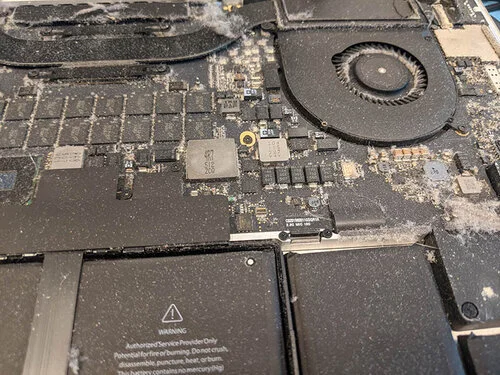
If the laptop is noisy during light use after restart, updates and the right power mode, cooling is the next suspect. Dust can block the heatsink so the fan works hard without moving heat out. Old thermal paste can cause the same symptom because heat no longer transfers efficiently from the processor to the cooler.
Do not blow hard compressed air straight into a laptop if you cannot hold the fan still. The fan can spin uncontrolled, and dust can be pushed deeper inside. Do not open a modern laptop without the right tools and model guide. Many have glued batteries, thin cables and plastic clips that break easily.
How to interpret the sound
A steady rush of air that increases when the CPU or GPU works is normal fan noise. Scraping, ticking, vibration, fan whining or fan errors at startup point to a worn or blocked fan. A high-pitched electrical whine that changes with load may be coil whine and is not always repairable. Clicking from an older mechanical hard drive is a data warning sign, not a fan problem.
When EasyPC should inspect it
Bring the laptop to EasyPC for a diagnosis if the sound is mechanical, the machine gets hot during light use, it shuts down, you suspect battery swelling, the files are not backed up, or you are unsure whether cleaning, fan replacement, thermal paste, BIOS update or data recovery is the right next step.