
Guides
Noisy PC fan: maintenance, repair and replacement
Is the PC fan noisy or running all the time? Separate Windows 11 workload, dust, heat, fan profile, thermal paste and faulty fan safely.
- 7 sections
- 7 min read
- Safe checks first
- Clear stop points
In this guide
Before you begin
What this guide helps you do
A noisy PC fan is not always defective. Before buying a replacement fan, find out whether the noise is caused by high workload in Windows 11, dust and poor airflow, old thermal paste, an aggressive fan profile, worn bearings, hard drive clicking, a graphics card fan or the power supply.
Stop troubleshooting and disconnect power if the machine smells burnt, a fan is stopped while the PC gets hot, the machine shuts down by itself, there has been liquid inside, or the noise comes from the power supply. If files are not backed up and the machine behaves unstably, back up or bring it to EasyPC for a diagnosis before testing more.
First identify which fan or sound it is
A desktop PC can have a CPU fan, case fans, graphics card fans and a power supply fan. A laptop often has one or two small fans, and sound can travel through the chassis. Listen without putting fingers or metal into a running machine. Shut down and unplug power before removing dust or touching fans.
A steady airflow noise that rises during gaming, updates or video meetings is often normal fan noise. Scraping, ticking, vibration or a sound like the blades touch something points more toward physical fan failure. Clicking from an old hard drive is a data safety warning, not a fan problem. A sharp electrical smell or sound from the power supply should not be diagnosed by opening the power supply.
Check Windows 11 workload before opening the PC
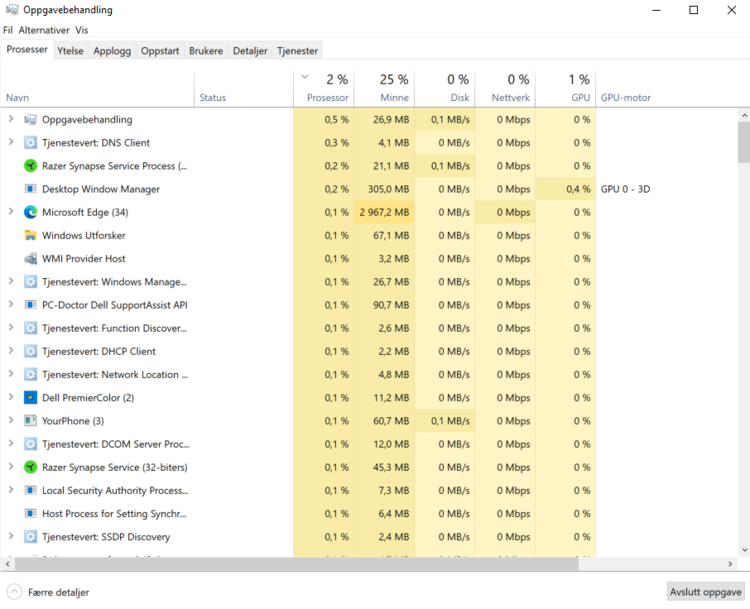
Press Ctrl + Shift + Esc to open Task Manager. On the Processes tab, sort by CPU, Memory, Disk and GPU. Let the machine sit idle for one to two minutes. If one app uses a lot of resources all the time, close it, update it or uninstall it if you do not use it.
Typical causes are Windows Update, antivirus scans, OneDrive sync, a browser with many tabs, video meetings, games, RGB or control utilities and stuck programs. Also check Startup apps in Task Manager. Disable only apps you recognize and do not need at startup.
To compare with Safe Mode, go to Settings > System > Recovery > Advanced startup > Restart now, then Troubleshoot > Advanced options > Startup Settings > Restart and choose Safe Mode. If the fan calms down there, or right after disabling startup apps, but gets loud again in normal Windows, clean boot can reveal a service or control utility. Search for msconfig, open System Configuration, go to Services, choose Hide all Microsoft services and then Disable all. Go to Startup > Open Task Manager and disable startup apps you recognize. Test briefly, then return to Normal startup afterwards.
Clean boot is only a test. It can temporarily stop RGB, printer, VPN, sync, game launcher and manufacturer fan software. If the noise disappears, turn services and startup apps back on in groups until you find the cause. Do not change Advanced boot options in msconfig; Microsoft warns that wrong use can make the PC harder to start.
Open Windows Security > Device performance & health to see whether Windows reports storage, battery or software issues. Also go to Settings > Windows Update > Check for updates, then Advanced options > Optional updates if the issue started after a driver or Windows change.
If Windows Update is stuck and the fan runs high because an update or driver installation keeps retrying, run Settings > System > Troubleshoot > Other troubleshooters > Windows Update > Run. Restart when the troubleshooter finishes, then check for updates again. On newer Windows 11, Settings > System > Recovery > Fix problems using Windows Update > Reinstall now can repair Windows files while preserving apps, files and settings, but the PC must stay connected to power and internet the whole time.
Do not use reset, clean install or setup.exe /product server as a fix for physical fan noise, high temperature, power supply noise, drive clicking or a machine that shuts down under load. Those signs must be treated as hardware and data-risk symptoms first. If Windows genuinely needs a repair install on an otherwise stable PC, use setup.exe /product server only from a mounted Windows 11 ISO with a fresh backup, the BitLocker key, stable power and confirmation that Setup offers Keep personal files and apps.
Power mode and performance profiles can control fan noise
On laptops and some prebuilt PCs, power mode can affect fan noise. Go to Settings > System > Power & battery > Power mode. Choose Recommended or Best power efficiency for normal office use. Best performance can provide more speed, but also more heat and louder fan noise.
Many manufacturers have profiles in Lenovo Vantage, HP Command Center, Dell Power Manager, MyASUS, MSI Center, Armoury Crate or similar software. Use only profiles that match your model. Do not install random fan control tools from unknown sites, especially on work PCs or machines with important data.
Dust and airflow: clean without damaging the fan
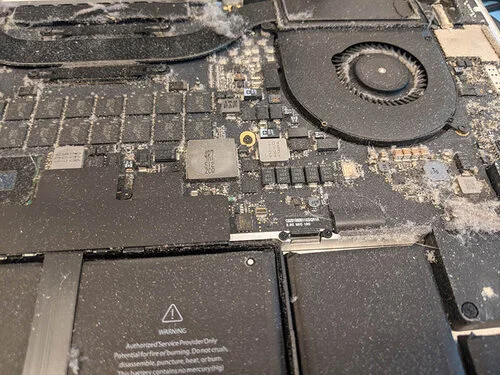
When heatsinks, filters and air paths are blocked by dust, the fan has to work harder without actually removing the heat. On a desktop PC you can often clean dust filters, front intake and case fans after power is disconnected. On a laptop, dust is often packed inside near the heatsink, and blowing randomly into the vents may not help.
Hold the fan blades still when using short bursts of air. Do not let the fan spin uncontrolled from compressed air, and do not use wet cleaning products inside the PC. Use anti-static care, sort screws and disconnect the battery before working inside laptops when the model requires opening. If you are unsure, a diagnosis is safer than breaking clips, cables or fan mounts.
Thermal paste helps when temperature is the problem
Old thermal paste can reduce heat transfer from CPU or GPU to the heatsink. Signs often include loud fan noise during light use, lower performance after a few minutes, a machine that heats up quickly, or shutdowns under load. In that case, simply replacing the fan rarely fixes the real problem.
Thermal paste should be replaced carefully: old paste is removed, the right amount of new paste is used, and the cooler is mounted evenly. On laptops, the cooler can sit under the motherboard or close to the battery and display cable. Do not disassemble under pressure if you need the machine or do not have a backup.
BIOS, firmware and fan curves: be careful
Some PCs let you change the fan curve in BIOS/UEFI or manufacturer software. Small changes can be useful, but do not disable protection or set the fan speed too low just to make the machine quiet. Too little airflow can cause heat, crashes and shorter lifetime.
BIOS and firmware updates should come only from the manufacturer for the exact model. Back up first, connect stable power, and find the BitLocker recovery key if encryption is active. An interrupted firmware update or wrong BIOS change can make the machine harder to start.
When the fan should be replaced
Fan replacement is relevant when the fan scrapes, ticks, stops, starts unevenly, gives a startup error or has physical damage. On a desktop PC, case fans are often simple to replace. CPU coolers, graphics card fans and laptop fans require the correct part, connector and disassembly method.
Do not open the power supply to replace its fan. Power supplies can hold dangerous voltage even after the cable is unplugged. If the noise comes from there, the whole power supply should be assessed for replacement. Bring the PC in for a diagnosis if you are not sure which fan is noisy or whether the temperature is safe.
If the power supply is replaced, do not mix modular PSU cables from the old and new power supply even if the plugs physically fit. Pinouts can differ between brands and models, and the wrong cable can destroy a drive, graphics card or motherboard. Use the cables supplied with that exact power supply.