
Guides
Laptop not charging: how to find the fault
PC or MacBook not charging? Follow safe checks for charger, USB-C, charging port, Windows 11 battery report, battery and motherboard faults.
- 7 sections
- 4 min read
- Safe checks first
- Clear stop points
In this guide
Before you begin
What this guide helps you do
When a Windows laptop or MacBook will not charge, it is easy to buy a battery too early. Start by separating five possible faults: charger, cable, USB-C or charging port, battery and power circuitry on the motherboard.
The order matters because the symptoms overlap. A weak USB-C charger can look like a battery fault. A loose charging port can look like a bad charger. A short circuit or liquid damage can look like a dead machine, but should not be tested repeatedly.
Stop first if there is heat, smell, liquid or battery swelling
Do not continue normal testing if the machine gets hot near the charging port, smells burnt, has had liquid inside, or the battery pushes against the trackpad, keyboard or bottom cover. Disconnect the charger, do not press the casing together, and do not puncture the battery.
A swollen lithium battery is a safety risk. Bring the machine in before charging it further. At EasyPC, you can bring in the PC or MacBook for a diagnosis so we can check the battery, charger, port and motherboard before repair.
Test charger, cable and wall outlet correctly
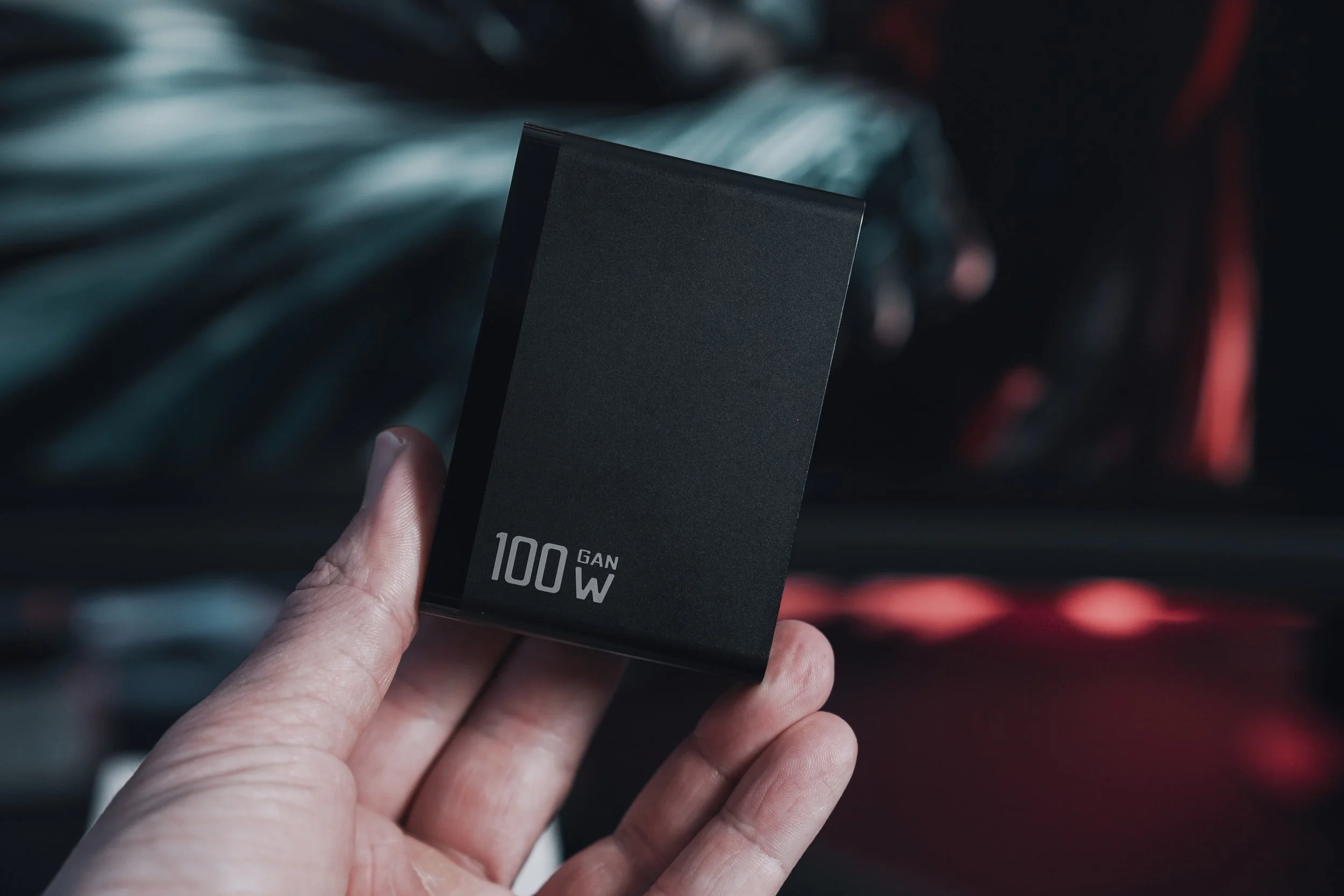
Use the original charger if possible, or a known compatible charger with the correct wattage. A USB-C phone charger may light up the laptop but still be too weak to charge it while in use. Test directly in a wall outlet, without a dock, hub, monitor or extension lead first.
Inspect the cable for bends, heat damage, discoloration, loose ends and visible damage. With USB-C charging, both the charger and cable must support enough power. If the machine has been completely empty, leave it on the correct charger for 10-15 minutes before deciding.
Check USB-C or charging port without forcing the plug
Not every USB-C port on a laptop necessarily supports charging. If the machine has several ports, try the one marked with a charging or power icon. Disconnect other USB equipment while testing.
If the plug is loose, must be held at a certain angle, or charging drops out when the cable moves, the fault points to the cable or charging port. Do not force it, and do not scrape inside the port with metal. Some ports can be replaced as a separate part, while others are soldered to the motherboard and require micro-soldering.
Read the signs in Windows 11 and macOS
In Windows 11, check Settings > System > Power & battery and the battery icon by the clock. Messages such as plugged in but not charging, very slow charging or a fast drop from 100 percent do not prove one single fault. It can be a deliberate charge limit, weak charger, bad battery, port fault or motherboard fault.
For more technical information, open Command Prompt as administrator and run powercfg /batteryreport. Open the HTML report it creates and look especially at Installed batteries, Design capacity, Full charge capacity and Recent usage. A large gap between design capacity and full charge capacity points toward battery wear, but the report does not prove that the charging port is healthy.
On a MacBook: check battery status in macOS if the machine starts, test a known correct charger and cable, unplug accessories and hold the power button for about 10 seconds before trying again. SMC reset applies only to older Intel-based Macs, not Macs with Apple silicon.
When the battery is likely the cause
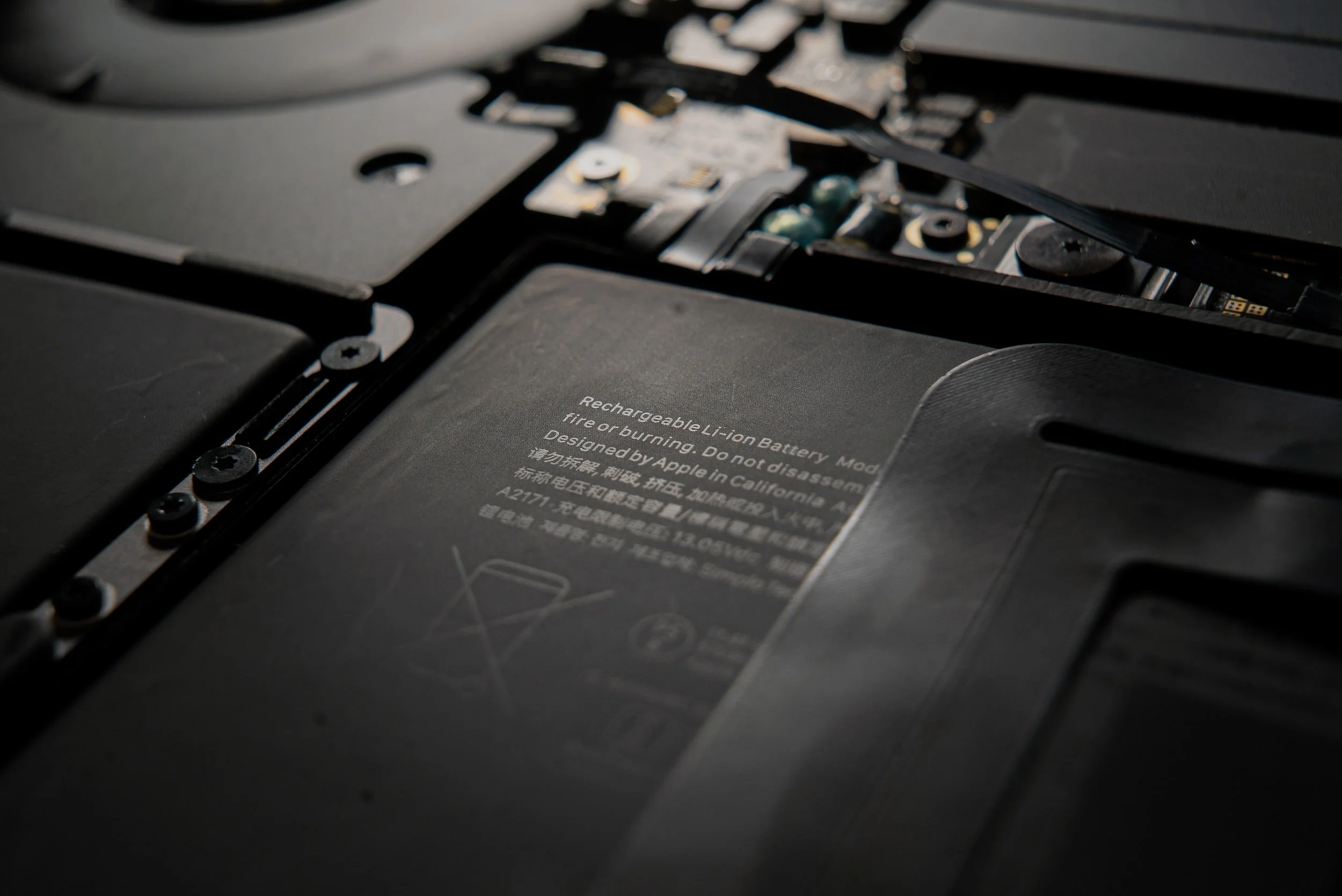
The battery is a strong candidate if the machine works reliably with the charger but shuts down when unplugged, if the percentage jumps, or if it does not hold charge for long even after full charging. On Windows, the battery report can support that suspicion.
Still, do not replace the battery blindly if the machine also loses charging when the cable moves, does not detect the charger, or gets hot near the port. Then the charger, port and power circuitry should be checked before ordering a battery.
When the motherboard needs diagnosis
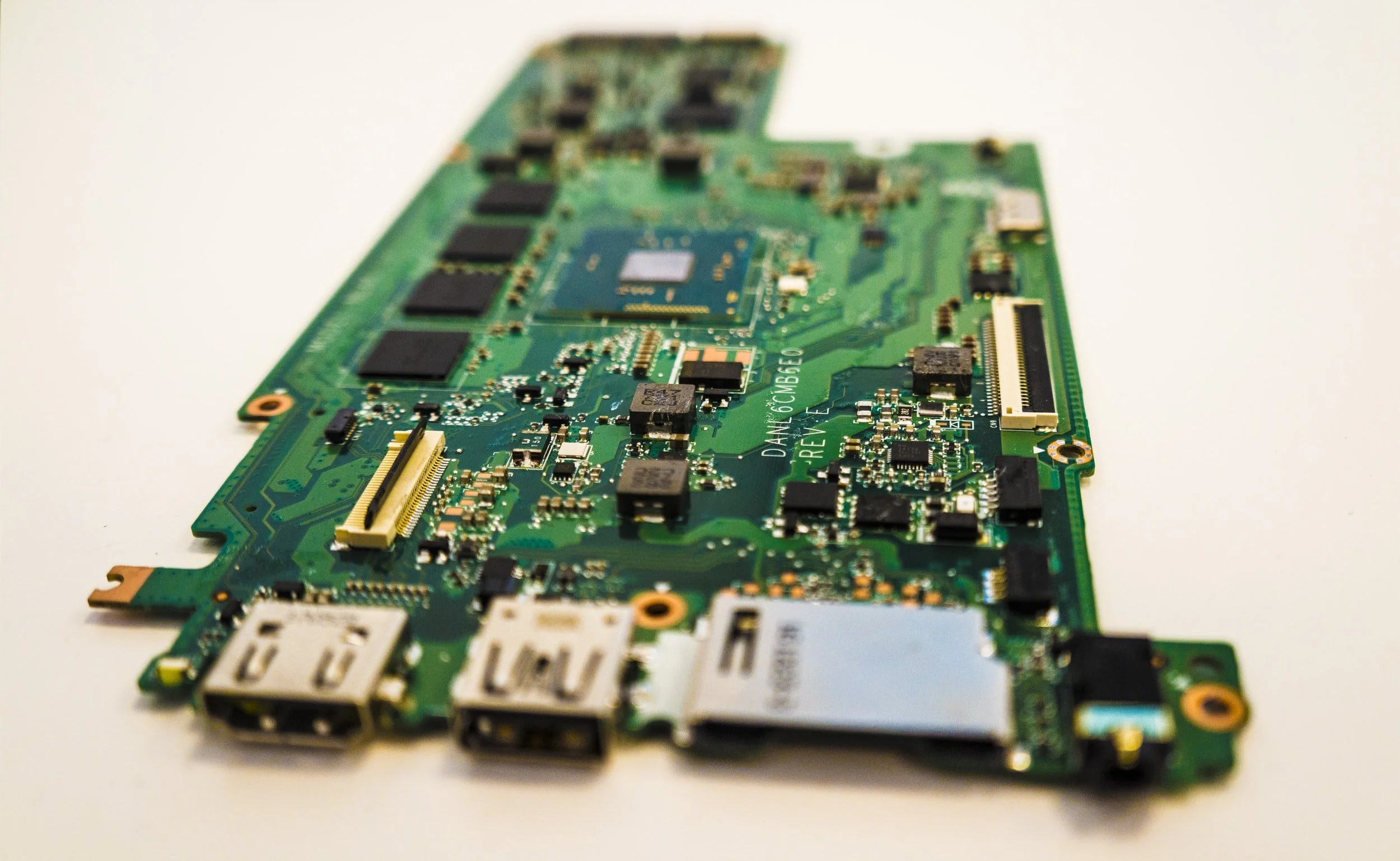
If the correct charger has been tested, the port looks physically intact, the battery is not the obvious problem and the machine still does not charge, the fault may be in power management, charging IC, fuse, USB-C controller or other motherboard components.
This is not a good case for random parts replacement. The machine must be opened carefully, the battery safely disconnected and measurements taken before repair. Stop earlier if the files are important and the machine will not start, so the drive or SSD can be assessed before more testing.
When should you bring the machine in?
Bring the machine in if the charging port is loose, the battery is swollen, the machine gets hot while charging, the correct charger does not help, or it will not start and the files are important. A diagnosis gives a better answer than buying a charger, battery or port by guessing. You receive a price before we continue.