
Guides
Old MacBook in 2026: repair, update or replace?
Older MacBook repair guide: check model, macOS support, battery, SSD, heat, backup and whether repair is still worth it.
- 10 sections
- 7 min read
- Safe checks first
- Clear stop points
In this guide
Before you begin
What this guide helps you do
An older MacBook can still be a good machine for browsing, school, office work, photos and light use. But in 2026, age alone is not enough to judge it. You need the exact model, the newest macOS Apple still offers for that model, battery safety, storage health, and whether the apps you rely on still support the machine.
Start with diagnosis before buying parts or installing anything new. A 2012-2015 MacBook can sometimes become very practical with an SSD, battery and cleaning, while a newer model with a bad display, soldered storage or logic board fault can be poor value. The right order protects both money and files.
Identify the model and back up first
If the Mac starts, open Apple menu > About This Mac. Note the model name, year, memory, storage and macOS version. Then open System Settings > General > Software Update. If Apple says the Mac is up to date, that only means it is not being offered a newer compatible version through normal update.
If the Mac does not start, the model and serial number may be printed on the underside or original packaging. Do not erase, reinstall or open Disk Utility to format anything before files are safe. Use Time Machine, iCloud or a manual copy to an external drive if the machine works. Also check System Settings > Privacy & Security > FileVault. If FileVault is on and you do not have the password or recovery key, file recovery can become much harder.
If Time Machine asks to erase an external drive, that means the drive is being prepared as a backup disk. Do not choose a drive that contains the only copy of files you want to keep. If you choose encrypted backup, store the password safely; without it, the backup can be unusable when you need to restore.
If photos, schoolwork, accounting or business files matter and you do not have a recent backup, stop here. Bring the Mac to EasyPC for a diagnosis before reinstalling, using OpenCore, replacing storage or disassembling it. The wrong first attempt can make data recovery harder.
Check the official macOS limit
Apple recommends the newest macOS that is compatible with your Mac. According to Apple's updated support pages in June 2026, macOS Tahoe 26 is the newest major version, but it does not support every Intel Mac. Many older MacBook Air and MacBook Pro models officially stop at Sequoia, Ventura, Monterey or older. Use Apple's compatibility list for the exact model, not just the year.
A practical sign: if Software Update does not offer Tahoe or Sequoia, and the model is not in Apple's list for that version, do not force in a newer macOS without understanding the risk. Instead, check whether the official version still supports the browser, BankID, school, work apps, printer and cloud storage you actually need.
Read the symptoms before choosing a fix
If the Mac is slow but starts reliably, first check free storage, login items and whether it still uses an old hard drive or weak SSD. If it is quick just after startup but slow after a few minutes, heat, dust, fan or old thermal paste is more likely. If it freezes, restarts, shows a question-mark folder, takes an extremely long time to open files or makes clicking sounds, assess data and drive health before upgrading.
If the keyboard, display, charging port, liquid damage, battery and storage all have issues at the same time, calculate the total before repairing. A simple SSD or battery can make sense. Several expensive faults on the same machine can mean the money is better spent on a newer used or new Mac.
SSD, RAM and model differences
The 2012 non-Retina 13-inch MacBook Pro is often one of the easiest older models to upgrade: it can typically take a SATA SSD and more RAM. Many 2013-2017 MacBook Air models and 2013-2015 Retina MacBook Pro models can get a new or larger SSD with the right part, but memory is soldered. On newer models, more of the storage, memory, keyboard, battery and security functions are integrated, and data recovery can be harder if the machine does not start.
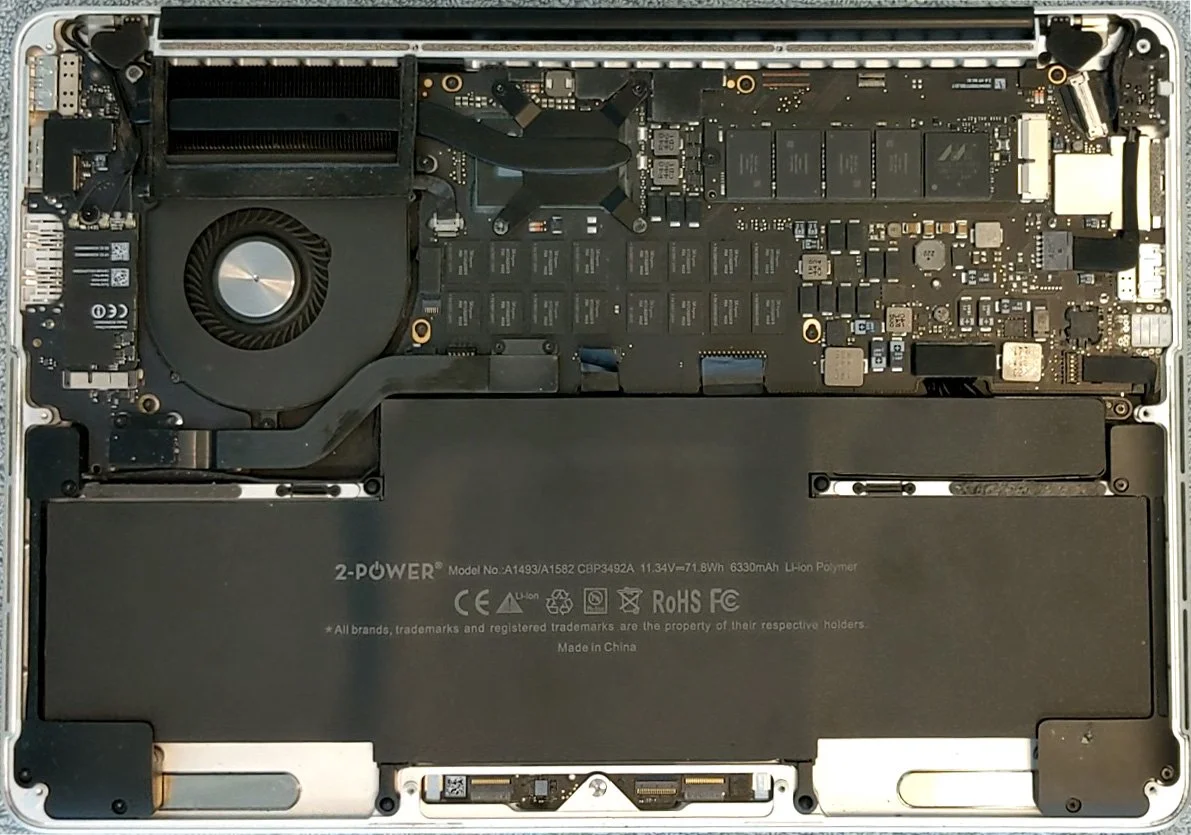
Do not order an SSD, battery or keyboard from screen size and year alone. Check the model identifier, part number and whether the machine uses Apple-specific storage, adapter requirements or soldered storage. The wrong part can almost fit, but cause instability, sleep/wake problems, bad battery reporting or impossible reassembly.
Battery: check both health and physical safety
Open System Settings > Battery if your macOS version has that view. Look for battery condition and warnings such as service recommended. For cycle count, hold Option, open Apple menu > System Information and choose Power. Apple explains that batteries have a limited number of charge cycles and that capacity drops with chemical age.
Stop using the Mac physically if the bottom cover bulges, the trackpad lifts, the machine rocks on the table, the battery smells sweet or chemical, or there are signs of liquid. Do not press the cover down and do not puncture the battery. Bring it in for a diagnosis, because a swollen battery is a safety risk and can damage the trackpad, case and logic board.
Cleaning and thermal paste can matter more than reinstalling
Dust and old thermal paste make the fan run more and make the processor lower its speed to protect itself. Typical signs are loud fan noise, a hot underside, slow video calls or Teams, and a machine that feels quick at first but slows down after some use. A clean macOS install alone will not solve that.
Cleaning and thermal paste require correct disassembly, correct screw lengths and safe battery disconnection. Do not use metal tools around the logic board, and do not spin the fan uncontrolled with compressed air. If you do not have a model-specific guide and the right tools, a diagnosis is safer than breaking a ribbon cable or battery connector.
Clean install: useful, but only after backup
A Mac that has been upgraded for many years can carry old apps, extensions, login items and faults that make it slow. A tidy reinstall of the right macOS can give faster startup and more free space. But Disk Utility, erasing and choosing the wrong disk can permanently remove files. Back up first, confirm that the backup opens, and note Apple ID, email passwords, license keys and important apps.
If you only want to reinstall macOS without deleting files, use macOS Recovery and choose reinstall, not erase in Disk Utility. If the goal is a fully clean install, you need a separate backup and must know exactly which disk to erase. If you are unsure about that distinction, EasyPC can diagnose the Mac and suggest the safest path.
OpenCore Legacy Patcher: possible, but not the default advice
OpenCore Legacy Patcher can install newer macOS versions on many Intel-based Macs that Apple no longer officially supports. The project's own documentation says supported models must be checked by model identifier, Apple Silicon is not supported, and the Mac should be updated to its latest native version first to get the newest firmware.
The OCLP documentation also explains that Post-Install Root Patches may be needed for graphics, Wi-Fi, Bluetooth, camera, Touch Bar/T1 and older drivers, and that these patches can be wiped by macOS updates. After an update, you must therefore be able to open OCLP again and rerun patches if functions are missing.
This is still unofficial. Wi-Fi, graphics, sleep/wake, external displays, FileVault, updates and performance can vary by model. Use OpenCore only if you have a backup, understand how to return to official macOS, and can tolerate troubleshooting after updates. For a work or school machine that must run every day, official macOS or a newer Mac is often safer.
When should you replace the Mac instead?
Consider a newer used or new Mac if the machine cannot run a macOS version that supports your apps, if the battery, display and logic board are all bad, if soldered storage has failed, or if performance no longer fits daily use even after SSD, cleaning and reinstalling. Repair should solve the main problem, not only delay replacement for a few months.
What EasyPC checks for you
During diagnosis we check model, official macOS limit, battery condition, cycle count, SSD or drive health, temperature, fan, keyboard, display, charger, FileVault, backup options and part prices. Then we tell you whether battery, SSD, cleaning, clean install, OpenCore assessment, data transfer or replacement makes the most sense.
Bring the charger, password, Apple ID information if you have it available, and tell us which apps and files matter most. That lets us judge the machine practically, not just technically.