
Guides
Windows 11 backup: how to protect your files
Create a safer Windows 11 backup with Windows Backup, OneDrive and an external drive before repair, reinstall, drive replacement or data recovery.
- 8 sections
- 6 min read
- Safe checks first
- Clear stop points
In this guide
Before you begin
What this guide helps you do
Backup matters before repair, Windows installation, drive replacement, reset, major updates and workarounds such as setup.exe /product server. In Windows 11, think in three layers: Windows Backup/OneDrive for selected folders and settings, a separate copy to an external drive for files you cannot lose, and control of the BitLocker key before changing anything.
Do not wait until the machine barely starts. If the drive clicks, disappears from BIOS, the PC freezes during copying or folders are suddenly missing, stop and have the drive assessed. EasyPC can do a diagnosis before more attempts make data recovery harder.
What should be backed up?
Start with folders you created or saved to: Desktop, Documents, Pictures, Downloads, Videos, Music, accounting files, project folders, game saves, email archives and exports from specialist software. Also remember browser bookmarks, license keys, two-factor codes, the BitLocker recovery key and logins for programs you use.
Find the BitLocker key before taking risks
Many Windows 11 machines use device encryption or BitLocker even if the user never actively enabled it. Check Settings > Privacy & security > Device encryption, or search for BitLocker in Start. If you see BitLocker recovery during startup, note the first 8 digits of the key ID and find the correct 48-digit key.
The key is often at https://aka.ms/myrecoverykey, in a work/school account, on a printout or on a USB drive. Microsoft cannot recreate a lost BitLocker key. If the key is missing and the files matter, stop before BIOS changes, reset, reinstall, moving the drive or replacing the SSD. Bring the machine to EasyPC for a diagnosis instead.
Use Windows Backup in Windows 11
Open Start, search for Windows Backup, or go to Settings > Accounts > Windows backup. Sign in with a personal Microsoft account if you use a local account. Windows Backup can include folders such as Desktop, Documents, Pictures, Videos and Music through OneDrive, and can also remember some settings, Wi-Fi passwords and your app list.
Pay attention to the account type. Microsoft describes the Windows Backup app as focused on consumer PCs with a personal Microsoft account, and work or school accounts do not work the same way. App remembering and some settings can also be limited by an organization or policy. On a work PC, check with IT before reset, new PC migration, SSD replacement or reinstall.
Check OneDrive storage before trusting this. A free Microsoft account has limited storage, and backup stops if the account is full or OneDrive is not syncing. Open the OneDrive folder and confirm that important files have a green check mark or actually exist in the cloud before resetting or reinstalling Windows.
Open the Windows Backup app or Settings > Accounts > Windows backup and check the status. If Windows Backup reports an error, the cause is often that OneDrive is not signed in, storage is full, or sync has stopped. Do not continue with reset or installation just because a toggle is on; confirm that the status actually says backed up.
Windows Backup is not a complete copy of the whole PC. Folders outside the selected user folders, local databases, old Outlook PST files, virtual machines, game folders, accounting programs and specialist apps can store data elsewhere. Check the program that creates the data, and export or copy it manually before repair.
Make a separate copy to an external drive
Connect an external SSD, hard drive or USB flash drive with enough space. Open File Explorer, go through your user profile under C:\Users\your-name, and copy the important folders manually. Manual file copy is often easier to verify than an automatic backup before repair.
Check the OneDrive status icons before copying. A blue cloud means the file is online-only and does not take up space on the PC. A green circle with a white check mark means the file is marked as always available on this device. Before copying to an external drive, right-click important OneDrive folders, choose Always keep on this device, wait until download is finished, and then copy.
Unplug the external drive when the backup is finished so it is not hit by the same fault, deletion, malware, liquid damage or power problem as the PC. For important files, 3-2-1 is a useful rule: three copies, on two types of storage, with one copy stored somewhere else. For personal use, that can be the PC, an external drive and OneDrive or another cloud service.
Use File History when you want versions
File History is still useful if you want ongoing versions to an external drive or network location. Connect the drive, open Control Panel > System and Security > File History, select the drive and turn it on. File History includes libraries such as Documents, Pictures, Videos and Music, and you can add other folders to a library if they should be included.
When restoring from File History or Previous Versions, choose "Restore to..." first if you are unsure. A direct restore can replace the current file or folder, and Microsoft warns that this replacement cannot be undone.
How to test the backup
Having a backup is not enough if it does not work. Open the external drive or cloud storage, find a few important files and confirm that they actually open. Test photos, documents, PDFs, accounting files and desktop folders. Also check that files have the right date and size, not just empty shortcuts.
Also check that the backup does not only contain shortcuts to OneDrive files that are not downloaded. If you use an external drive, open a few files while the internet is disconnected. That shows whether the files are actually on the backup drive.
Restoring later
If you only need individual files, they can often be copied back directly. With Windows Backup and OneDrive, sign in with the same Microsoft account and let folders and settings sync back. From an external drive, copy folders back to the correct user profile after Windows is stable.
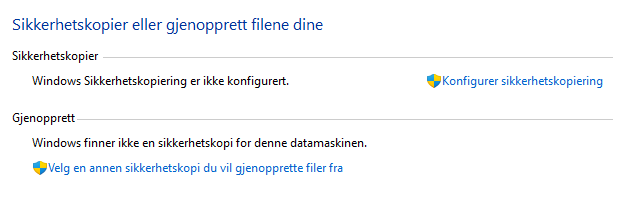
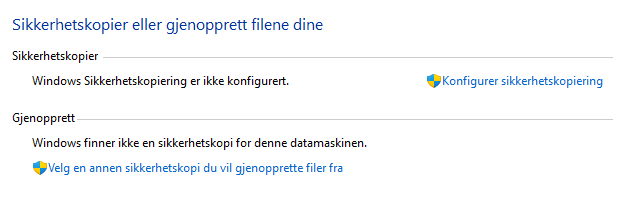
Windows still includes older tools such as Backup and Restore in Control Panel, and system images can help in some cases. Microsoft still recommends modern backup options first because they are easier and less destructive. Be especially careful with full restore operations: they can overwrite newer files or the entire drive. If the goal is file recovery from an unstable drive, do not start large restore jobs before the most important files are secured.
Do not mix up backup, recovery and repair media. A recovery drive can help a PC start or restore Windows, but Microsoft states that it does not include personal files. System Restore mostly concerns system files, drivers and settings. Neither replaces a verified copy of documents, photos, accounting files, email and project folders.
Before bringing the machine in for repair
Back up if the machine starts normally. If it does not start, if BitLocker asks for a key you cannot find, or if the drive seems unstable, do not reset or reinstall Windows first. This also applies to in-place upgrade or repair attempts with setup.exe /product server: the method can keep files and programs in some cases, but it is not a substitute for backup. Bring the machine to EasyPC for a diagnosis so we can assess whether files should be recovered before repair.